Main Content Screen
The Main Content Screen displays all records in a columnar (Spreadsheet View) format. The Module Sidebar controls the information which is accessed in the Spreadsheet View.
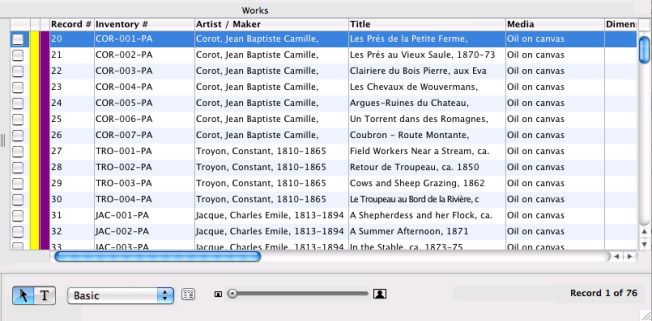
Quick Tips On Navigation In The Main Content Screen:
- For faster scrolling, use the Create Thumbnail Images feature. See Preferences>Images.
- Use the up/down scroll bar (blue) on the right to quickly move up and down the list. Use the up/down arrows (on the bottom of the scroll bar) to scroll more slowly.
- Use the left/right scroll bar (blue) on the bottom to quickly move left and right to view all field columns. Use the left/right arrows (on the right of the scroll bar) to scroll more slowly.
- Resize the field columns by moving the vertical column divider lines. To resize columns, position the curser on the vertical column line, when you see the double arrow <-|->, click and move the vertical line to the left or right
- Move field columns by clicking once on the field heading to highlight the field name, then click and drag the column to the desired location.
- Utilize the Main Content Display Toolbar to adjust the Spreadsheet Layout. Create and save Spreadsheet Layouts with the Spreadsheet Layout tools. See Basics>Customize Spreadsheet Layouts
- Use the Image Slider tool to adjust the height of the rows (NOTE: a larger row height will reveal the Primary Image attached in the Works Module).